
This section explains how to compile the tutorials that guide you through the basic use of the c-treeDB API for C.
The source code is located in the drivers\c.nav\tutorials folder.
Compiling and Executing the Tutorials
The sample tutorials can be compiled in these ways:
- Use the Microsoft Visual Studio IDE
- Command-Line Compile - Windows
- Command Line IDE Compile - Windows
- Command Line Compile - Linux
Compile Using Microsoft Visual Studio IDE
This section explains the steps to compile and run the tutorial from the Microsoft Visual Studio IDE. FairCom provides Microsoft Visual Studio solutions for Microsoft Visual Studio 2015, 2017, and 2019. You can find these solutions in the various “Microsoft Visual Studio” directories in the <faircom>\sdk\<your-API-folder>\tutorials\IDEProjects directory. Please choose the one which corresponds to the version of Visual Studio you have installed.
This tutorial requires the Microsoft Windows SDK to be installed on your computer. See Microsoft Windows SDK.
If the FairCom Database Engine is not already running on your machine, start the server as explained in Starting the FairCom Database Engine.
The source code is located in this directory: <faircom>\sdk\<your-API-folder>\tutorials
How to Use the Visual Studio Environment
- Load the Tutorials.sln file that corresponds to your version of Visual Studio by double-clicking the .sln file.
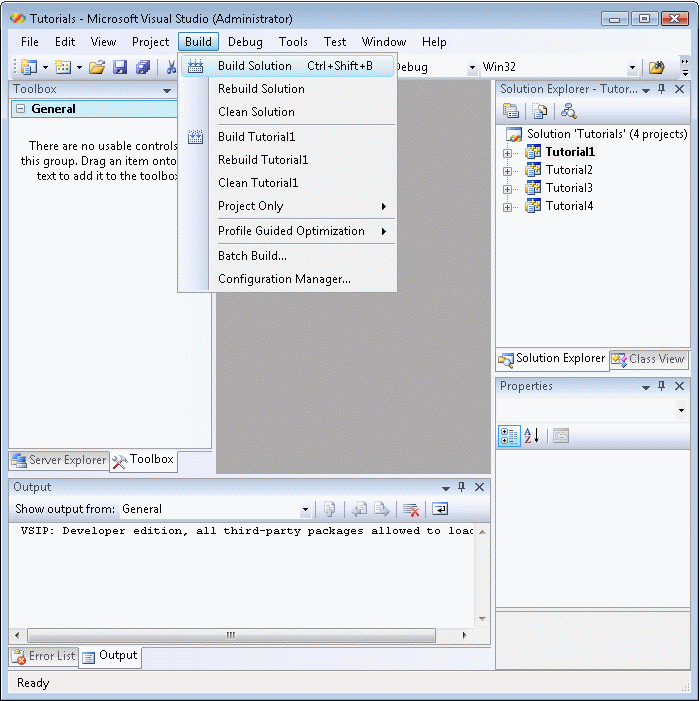
- To build these samples, use the Build menu of Microsoft Visual Studio and pick the Build Solution item:
- To run the tutorial, choose Start Debugging in the Debug menu or simply press F5.
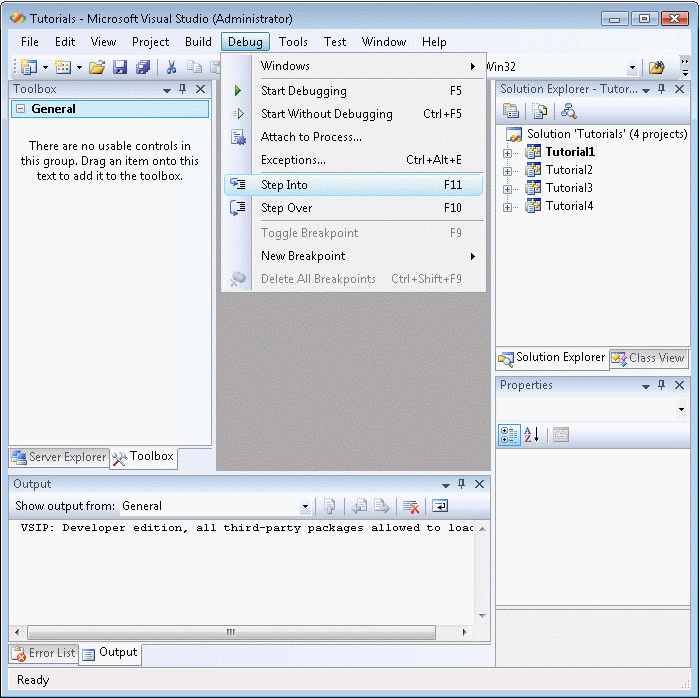
- To fully observe how this tutorial interacts with c-tree, step through the code with the debugger and execute it step-by-step using Step Into from the Debug menu or simply press F11.
Command-Line Compile - c-nav (ctdb) on Windows
This section explains the steps to compile and run the FairCom DB API C tutorials from the Microsoft Visual Studio Developer Command Prompt window (also called the Native Tools Command Prompt window).
This section is oriented toward a command-line running on Microsoft Windows. The principles are similar for other environments that provide .NET support, such as Linux/Unix.
- The tutorial requires that you have installed the Microsoft Windows SDK, available from Microsoft Windows SDK.
- FairCom currently supports the 2015, 2017, and 2019 versions of Microsoft Visual Studio.
- If the FairCom Database Engine is not already running on your machine, start the server. See Setup.
- Open the Developer Command Prompt window, typically available from the Windows Start menu for your version of Microsoft Visual Studio: Visual Studio 2017 > X64 Native Tools Command prompt for VS 2017
- Where 2017 is your version of Visual Studio and X64 is for a 64-bit version of c-tree (note “64” in the name of the default installation directory) or X86 for a 32-bit version of c-tree.
- Warning - the Developer Command Prompt Start menu entries which do not specify a bit depth, it will open the 32-bit version of the Developer Command Prompt.
- For more details, see the Microsoft Developer Command Prompt web page.
- In the Developer Command Prompt window, move to the drivers\c.nav\tutorials\cmdline directory and execute the BuildTutorials.bat file.
- This batch file will determine the version of the Microsoft C compiler you are using and will set the internal paths accordingly. It will then compile the tutorials included for this driver.
- After the tutorials have been built, the batch file will run them one-at-a-time. A prompt will ask you to press <Enter> before running each tutorial.
- If you see a c-tree error, you can look it up in the Error Code Reference. See the "Troubleshooting" section below for solutions to common problems.
The first tutorial should look similar to the image below when running:
INIT
Logon to server...
DEFINE
Open table...
Add fields...
Create table...
MANAGE
Delete records...
Add records...
Display records...
1000    Bryan Williams

1001    Michael Jordan

1002    Joshua Brown

1003    Keyon Dooling
DONE
Close table...
Logout...

Press <ENTER> key to exit . . .
Executing the Tutorials by Hand
You can run the tutorials individually using the executables located in sdk\<your-API-folder>\tutorials\cmdline. sdk\<your-API-folder>\tutorials\cmdline.
ctdb_tutorial1.exe
ctdb_tutorial2.exe
ctdb_tutorial3.exe
ctdb_tutorial4.exe
Running in Debug Mode
To fully observe this API in action, you can single-step through the code with the Visual Studio integrated debugger. You can call this as follows:
devenv ctdb_tutorial1.exe
devenv ctdb_tutorial2.exe
devenv ctdb_tutorial3.exe
devenv ctdb_tutorial4.exe
Hint: A better way to single-step and debug is to open the Visual Studio solution that we provide. See Compile Using Microsoft Visual Studio IDE.
Troubleshooting
This section lists some of the errors that can occur when compiling and running these tutorials:
cl.exe not found! Please set environment for Visual C/C++ compiler.
The most common cause of this error is running the BuildTutorials.bat file from a DOS shell or normal Windows command shell rather than from the Visual Studio Developer Command Prompt window.
ERROR: [133] - Initialize(): ctdbLogon()
The most common cause of this error is that the FairCom Database Engine is not running on your machine. Remember that the c-tree evaluation license times out after 3 hours, so the server might have exited and needs to be restarted. See Starting the FairCom Database Engine.
Command-Line IDE Compile - Windows
We also provide a way to compile and run the C Nav tutorials from a batch file that invokes the Visual Studio IDE to do the compilation.
The instructions are identical to the previous section except the BuildTutorials.bat batch file is located in the sdk\<your-API-folder>\tutorials\IDEProjects directory.
Command-Line Compile - Linux NAV
This section explains the steps to compile and run the NAV tutorials from the Linux command line/command shell.
If the FairCom Database Engine is not already running on your machine, start the server. See Starting the FairCom Database Engine.
Compiling
To compile the NAV API tutorials from the Linux command line, follow these steps:
- CD into the proper folder:
- sdk/<your-API-folder>/tutorials/cmdline
- Execute make:
- >make
- If make works, it prints…
The c.nav tutorials are ready to run.
Type 'make run' to run the tutorials.
Running
Be sure the FairCom Database Engine is running.
To run the c-tree tutorials from the Linux command line, follow these steps from the same folder you compiled from:
- Type the following:
- >make run
- The make file will run the tutorial(s).
- A prompt will ask you to press <Enter> after each tutorial is run.
If you see a c-tree error, you can look it up in the Error Code Reference.
See the Troubleshooting section below for solutions to common problems.
When running, the first tutorial should look similar to the text below:
INIT
Logon to server...
DEFINE
Open table...
Add fields...
Create table...
MANAGE
Delete records...
Add records...
Display records...
1000    Bryan Williams

1001    Michael Jordan

1002    Joshua Brown

1003    Keyon Dooling
DONE
Close table...
Logout...

Press <ENTER> key to exit . . .
See the Compile Using Microsoft Visual Studio IDE section for directions on how to use this tutorial.
Note: On systems running a glibc version older than 2.17, the tutorials need to be linked with librt by adding -lrt to the SYSLIBS macro in the makefile. If you are running a system with glbic older than 2.17, edit the makefile and uncomment -lrt.
Troubleshooting
This section lists some of the errors that can occur when compiling and running these tutorials:
ERROR: [133] - Initialize(): ctdbLogon()
The most common cause of this runtime error is that the FairCom Database Engine is not running. Remember that the c-tree evaluation license times out after 3 hours, so the server might have exited and needs to be re-started. See Starting the FairCom Database Engine for details.